Razer Kiyo V2 Honest Review — Is the Hype Justified?
Introduction
I've been using the Razer Kiyo V2 as my daily webcam for the last four months on a laptop setup — doing everything from early-morning video calls and live streaming to recording quick tutorial clips. I bought it because I wanted a step up from the older, grainy laptop camera and from the original Kiyo's ring light experience. After spending this time with it, I want to share my real-world impressions: what it does well, what feels overhyped, and whether it's worth the upgrade for someone who uses a laptop as their main content machine.
First impressions and setup
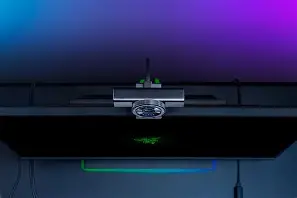
Out of the box I appreciated how compact the Kiyo V2 was. The build feels sturdier than most clip-on laptop webcams — there's actual weight to the base and the hinge, which made mounting on my laptop screen easier without worrying about it sagging. The hardware feels mostly plastic, but it's a dense, quality plastic rather than flimsy. The USB-C cable is braided and long enough for laptop tops and small desks without needing an extender.
Setup was straightforward: plug-and-play for Windows video apps, and installing Razer Synapse unlocked the extras. I noticed right away that some features — like the advanced background removal and advanced lighting controls — require Synapse. Synapse has improved since the older versions, but it's still a fairly chunky app to run on a laptop that’s already juggling many background processes.
Image quality and real-world performance
What I tested: Zoom/Teams calls, OBS streaming at different bitrates, recording local clips for YouTube, and some low-light late-night streaming. My laptop is a mid-range ultrabook with a quad-core CPU and integrated graphics — not a powerhouse — so this is a realistic baseline for many users.
In daylight or when I used my desktop lamp, the Kiyo V2 produced far cleaner images than my laptop camera and meaningfully improved over my older Kiyo. Faces look more defined and colors are more natural. Skin tones were pleasantly accurate in most lighting conditions; I didn't need to crank saturation or apply heavy correction in post.
Low-light performance is one place where the Kiyo V2 is noticeably better than the built-in laptop camera. I regularly stream from a room with only a warm desk lamp and the Kiyo V2 kept noise lower and detail crisper. That said, it's not magical — in very low light it will still try to brighten the image by increasing gain, so you'll see noise if the lighting is truly poor. The built-in diffuser for the ring light helps reduce hotspots, but I still needed a secondary soft light for the most flattering results on camera.
Autofocus was reliable during my use. I frequently move slightly forward to reach my keyboard or lean back, and the Kiyo V2 reacquired the subject without noticeable hunting on calls. There were a couple of moments during high-motion test clips (I stood up and moved around) where the focus lagged a step behind, but for most seated work it stayed locked onto my face quickly and accurately.
Framerate, latency, and CPU usage
I ran streams at a range of quality settings. When pushing higher frame rates and resolutions, my laptop's CPU became a limiting factor. What I found was practical: you can comfortably run 1080p at a higher frame rate without stuttering on a modern laptop, but on older or lower-powered machines it becomes a trade-off. If you're using a laptop without a discrete GPU, expect to tune settings in OBS or your conferencing software to avoid high CPU usage. The webcam itself doesn't cause heavy CPU drain, but processing (encoding, background replacement, effects) on the host machine can.
Discover deals on Laptops & Computers — updated daily.
Shop Amazon →Latency felt minimal during calls. I didn't notice audio/video sync issues caused by the camera itself; any AV sync problems were related to my microphone setup or my software encoding settings, not the Kiyo V2.
Built-in microphone and voice quality
The Kiyo V2's microphone is decent — easily better than most laptop mics. In my home-office tests, attendees on calls commented that my voice sounded clearer and more present. That said, the mic is not a substitute for a proper USB/XLR microphone if you do high-quality streaming or podcasting. The built-in mic picks up room ambience and desk noises; it’s good for casual streams, quick interviews, or meetings where you don't want a separate mic cluttering your desk, but it doesn't replace a cardioid condenser or dynamic mic for polished audio.
Software features and usability
Razer Synapse unlocks the camera's smart features: automatic background removal, auto framing, lighting presets, and quick toggles for color temperature and exposure. I used the background removal in a pinch during remote interviews and it worked surprisingly well — edges around hair were cleaner than I expected — but it isn’t perfect. When I moved quickly or when my background had complex textures (shelves with items), I saw occasional flicker or slight haloing. For calls where I needed a reliable virtual background, I still preferred a physical backdrop.
One gripe: Synapse can be resource-hungry on lightweight laptops. While the core camera worked without installing the software, the best features require it, so that’s something to weigh for laptop users trying to minimize background apps. I also had the occasional hiccup where settings didn't persist across a reboot until I manually reselected a profile.
Lighting ring — helpful but imperfect
The integrated ring light is a highlight compared to many webcams. It's more subtle than the old Kiyo's bright ring and the diffuser does a good job of softening shadows. In my experience the light is very usable for quick shoots and evening calls: it evens out my face without creating the hard catch-light I used to see with bare LEDs.
That said, the ring's power is limited by physics: it sits close to the lens, so at normal desk distances it helps, but it doesn't replace a three-point lighting setup. I noticed a tiny falloff near the edges of the frame and a slight sheen on glasses. The light's brightness steps are fine for most users, but I would have liked a smoother dimming curve for finer control.
Build, mount, and ergonomics
The mounting clip fits both slim laptop lids and thicker monitors. I liked that it could be positioned on a small tripod easily — I switched between a laptop top mount and a short tripod on my desk without drama. The hinge allowed me to angle the camera down slightly, which avoided the unflattering upward angle you sometimes get with clip mounts. I did notice a small wobble if I nudged the laptop screen hard, but that’s expected with any clip-mounted webcam.
Discover deals on Laptops & Computers — updated daily.
View Offers →What I genuinely liked
- Image quality boost over laptop cameras: Cleaner, more natural colors and improved low-light behavior.
- Useful integrated light: Diffused ring light that makes late-night calls look better without extra gear.
- Reliable autofocus: Quick reacquisition when I moved, with minimal hunting in normal use.
- Compact and sturdy mount: Easy to move between laptop and tripod.
- Software features: Background removal and auto framing that actually work in everyday scenarios.
And what disappointed me
- Software bloat: Synapse is helpful but heavy — I felt it on my laptop's performance at times.
- Ring light limitations: A helpful supplement, not a replacement for proper lighting; mild hotspots and falloff visible in some setups.
- Microphone limits: Good for casual use but not a substitute for a dedicated mic for serious streamers.
- Background effects aren't flawless: Occasional haloing on hair and complex backgrounds.
Pros & Cons
- Pros:
- Noticeable improvement over built-in laptop cameras in color and detail
- Useful integrated diffuser ring light for quick lighting fixes
- Solid mounting options and compact design
- Autofocus and auto-framing are dependable
- Software features like virtual background and presets add convenience
- Cons:
- Synapse can be resource intensive on some laptops
- Integrated mic is fine but not exceptional
- Lighting and background removal work well but are not flawless
- Fine-grain light control could be better
Comparison: How the Kiyo V2 stacks up (my practical take)
| Feature | Razer Kiyo V2 (my test) | Razer Kiyo Pro (reference) | Logitech Brio (reference) |
|---|---|---|---|
| Image quality | Very good for daylight and improved low-light; natural colors in my tests | Excellent, especially in varied lighting; slightly better dynamic range in my experience | Great for 4K/streaming setups; colors are neutral and sharp |
| Low-light | Solid improvements over laptop cam; still benefits from extra light | Stronger low-light handling in my hands | Performs well but depends on software |
| Lighting | Built-in diffused ring light — very handy for quick setups | No built-in ring light — relies on external lighting | No built-in light |
| Microphone | Clear for calls; not pro-level | Good, but still not a replacement for a standalone mic | Decent, often used alongside dedicated microphones |
| Software features | Background removal, presets; requires Synapse | Usually paired with Synapse; strong manual controls | Work with Logitech software; solid driver support |
| Best for | Laptop users who want an all-in-one, better-looking webcam without extra lights | Users prioritizing absolute image quality and low-light performance | Users who want high resolution and compatibility across platforms |
Buying guide — who should consider the Kiyo V2
In my experience, the Kiyo V2 is best for these scenarios:
- Laptop users needing a meaningful camera upgrade: If your laptop camera looks washed-out or grainy, the Kiyo V2 adds immediate polish without a complex lighting rig.
- Casual streamers and creators: If you stream occasionally or make tutorial videos, the integrated light and reliable autofocus reduce setup friction.
- People who want a tidy single-device setup: You get decent mic, light, and camera in one package, which is great for cramped desks or travel.
When to look elsewhere:
- Professional streamers or podcasters: If you need broadcast-level audio or the absolute best image in variable lighting, pair the Kiyo V2 with dedicated mics and lights or opt for a higher-end camera system.
- Users who won't or can't run Razer Synapse: You can use the camera without the software, but many quality-enhancing features live in Synapse, so factor that into your decision.
- Those wanting perfect background replacement: If you rely on software backgrounds for professional presentations daily, a green screen or more powerful background-removal tool will deliver more consistent results.
Practical tips from my months of use
- Match the Kiyo V2 with a simple desk light for the most flattering results. The ring helps, but a soft fill light reduces shadows dramatically.
- If you're on a lightweight laptop, test Synapse first. On my mid-range ultrabook, Synapse nudged CPU usage up; on my desktop it was a non-issue.
- Position the camera slightly above eye level and angle it down a touch for a more natural perspective — the Kiyo V2's hinge makes this easy.
- Use the Kiyo V2 mic for calls, but keep a small USB mic handy for recordings where audio quality matters.
- Save Synapse profiles for different apps (streaming vs. conferencing) — switching between them saved me time and consistent results.
Final verdict — is the hype justified?
After four months of daily use, I can say the Razer Kiyo V2 delivers on the core promise: it makes your laptop-based video presence look better without adding a stack of external gear. What I found was a practical, well-rounded webcam that balances image quality, convenience, and smart software features. The built-in diffused ring light is a genuine convenience for late-night calls, the autofocus is reliable for normal desk movement, and the camera gives a clear step up over typical laptop webcams.
Is it perfect? No. Synapse's resource usage, the microphone's limits, and the fact that software background tools are helpful but imperfect are honest drawbacks. For me, those compromises are acceptable because the Kiyo V2 simplifies my workflow: fewer devices, quicker setup, and solid day-to-day performance.
If you're a laptop user who wants a noticeable upgrade in how you look and sound in calls and streams without diving into separate lights, mounts, and a pro mic, the Kiyo V2 is worth considering. If you already own good external lighting and a quality microphone and your priority is the absolute best image in every lighting condition, you might shop at slightly higher-end models or assemble a dedicated kit instead.
Conclusion
I've been using the Razer Kiyo V2 consistently for several months and I still reach for it when I need a quick, reliable camera setup. It isn't a miraculous one-device solution for professional-grade production, but it greatly improves everyday video quality for laptop users and small-space creators. What I appreciated most was the simplicity: plug it in, tweak a few Synapse settings, and I was ready to go. What bothered me were the software's resource demands and the inevitable limitations of an integrated mic and light. Overall, the hype around the Kiyo V2 is largely justified for its target audience — it's a practical, thoughtful upgrade that makes the average video call and casual stream look and sound better with minimal fuss.